ClientCraft.VisualBuilder.Umbraco
0.1.0-beta.2
dotnet add package ClientCraft.VisualBuilder.Umbraco --version 0.1.0-beta.2
NuGet\Install-Package ClientCraft.VisualBuilder.Umbraco -Version 0.1.0-beta.2
<PackageReference Include="ClientCraft.VisualBuilder.Umbraco" Version="0.1.0-beta.2" />
<PackageVersion Include="ClientCraft.VisualBuilder.Umbraco" Version="0.1.0-beta.2" />
<PackageReference Include="ClientCraft.VisualBuilder.Umbraco" />
paket add ClientCraft.VisualBuilder.Umbraco --version 0.1.0-beta.2
#r "nuget: ClientCraft.VisualBuilder.Umbraco, 0.1.0-beta.2"
#:package ClientCraft.VisualBuilder.Umbraco@0.1.0-beta.2
#addin nuget:?package=ClientCraft.VisualBuilder.Umbraco&version=0.1.0-beta.2&prerelease
#tool nuget:?package=ClientCraft.VisualBuilder.Umbraco&version=0.1.0-beta.2&prerelease
Client Craft Visual Builder for Umbraco
Edit your Umbraco pages the way they look. Your real page, rendered by your own templates, becomes the editor. Click a headline and type. Drag a section somewhere else. Restyle it for phones. Then press Umbraco's own Save and publish.
No new document types. No content migration. No lock-in. Your blocks, your templates, your data.
dotnet add package ClientCraft.VisualBuilder.Umbraco --prerelease
Public beta. Running on real sites today. Tell us what works, what breaks and what you miss in GitHub issues. We read every one.
Build in real time
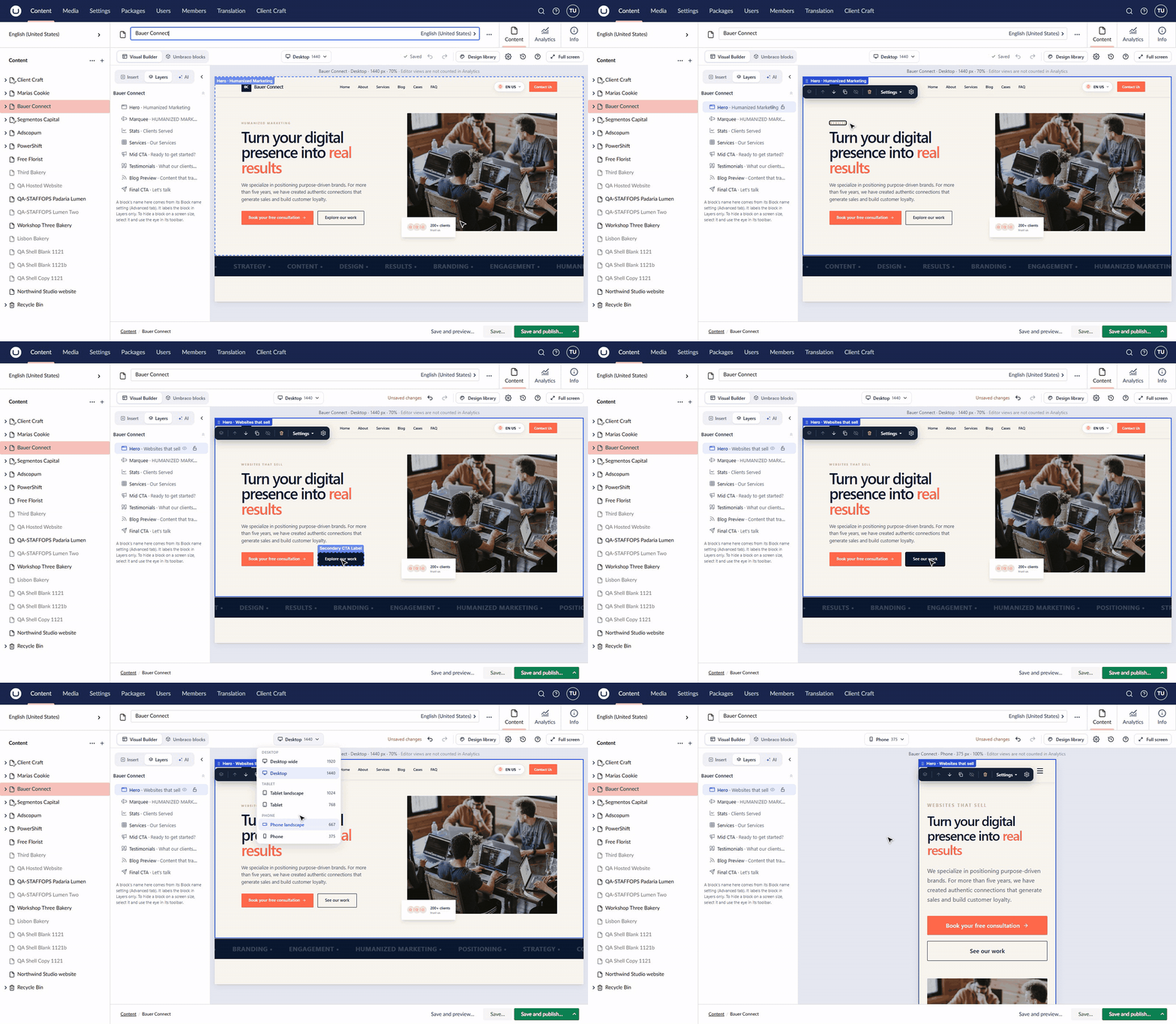
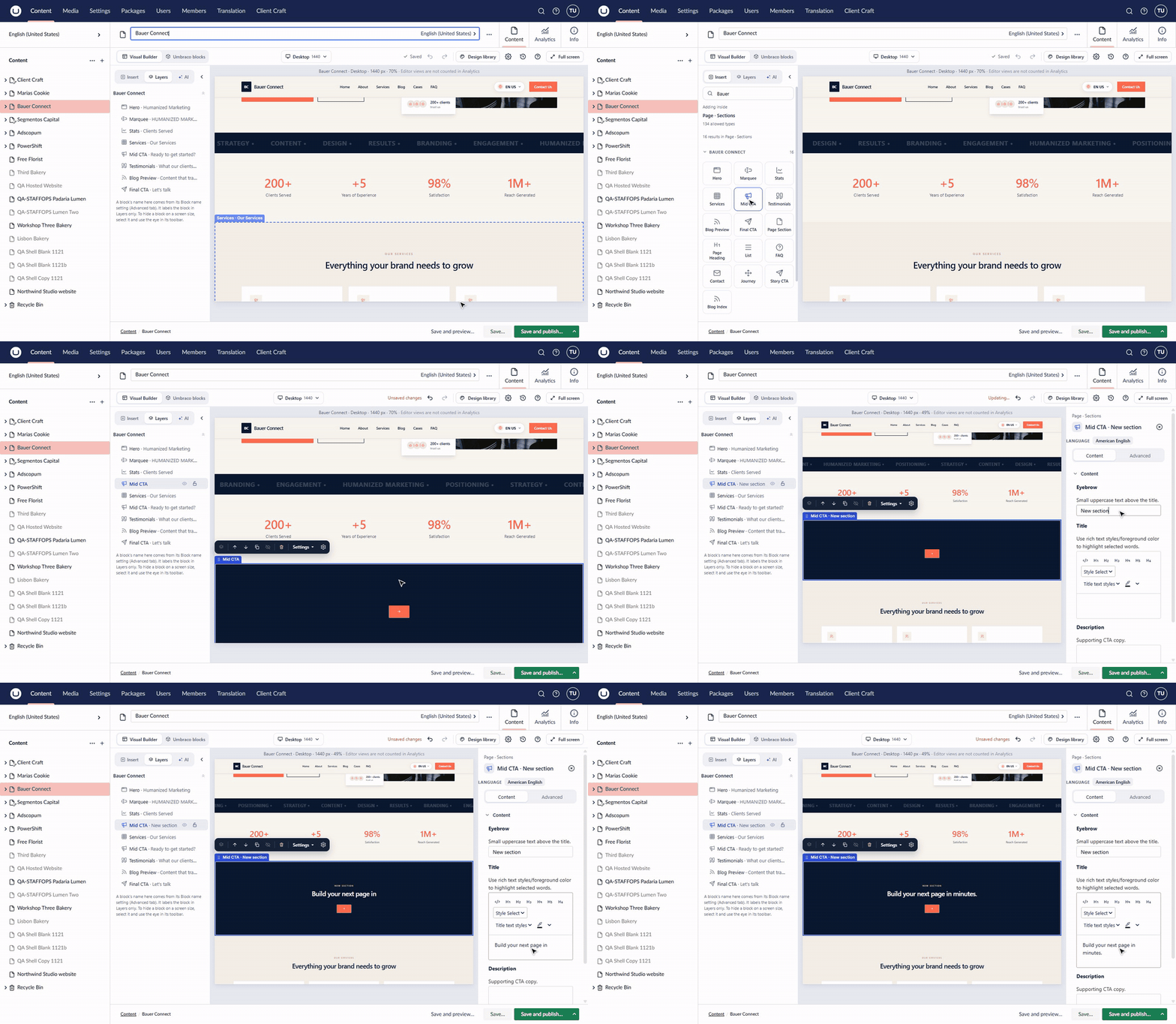
The canvas is not a preview or a mock-up: it's your site, with its own CSS, fonts and scripts, rendered live inside the backoffice. Open Insert, search your own block types (or saved patterns) and drag one onto the page. Fill in its fields and the new section takes shape as you type. Only blocks your grid allows in that spot are offered, so editors can't break your layout, and nothing is saved until you press Save.
Type straight onto the page
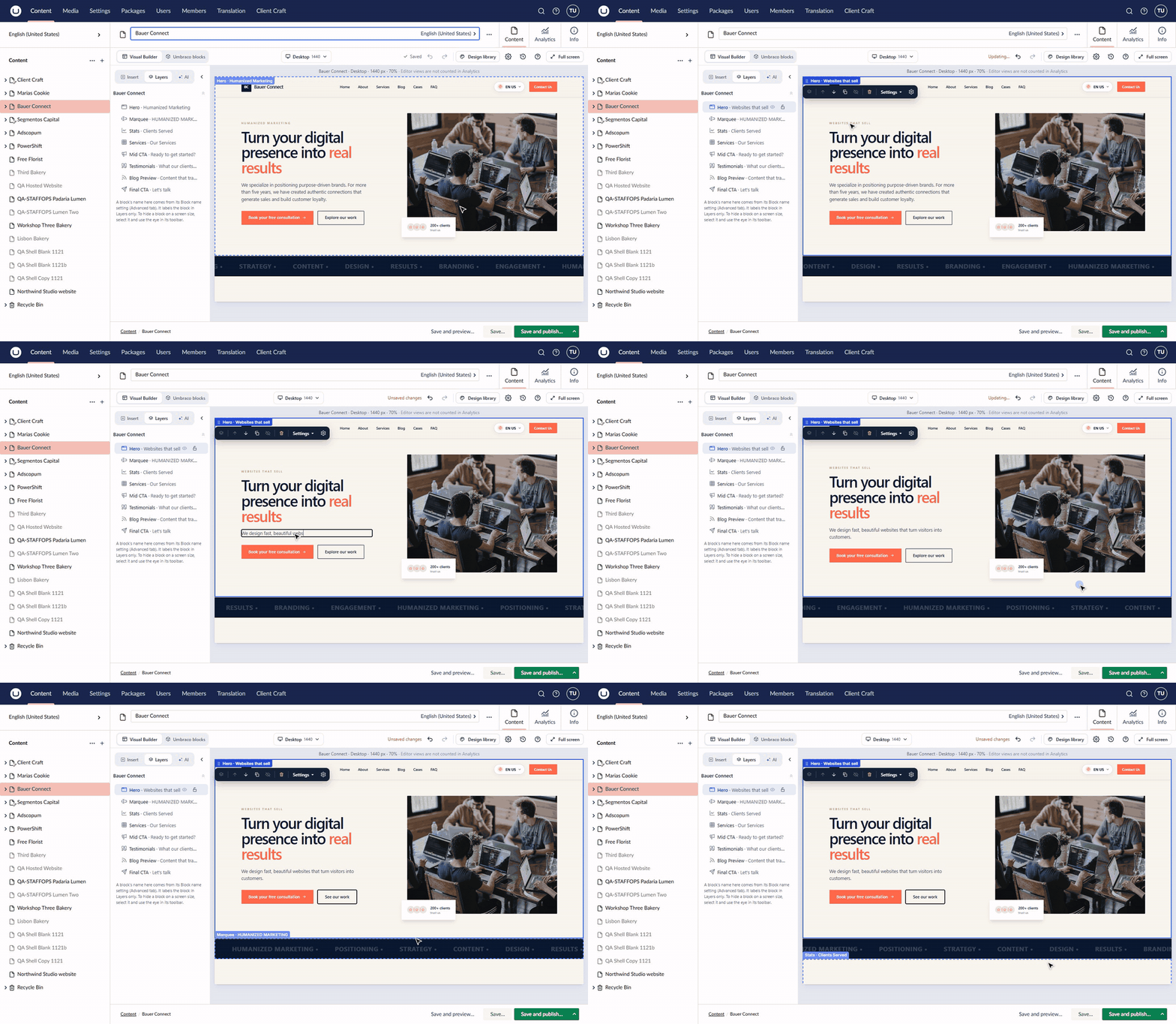
Double-click any headline, label, paragraph or button text and just type. Press Enter (or click away) and the text is written back to the right Umbraco property; Esc cancels and one undo puts it back. No forms, no hunting for the right field.
Change properties on the fly
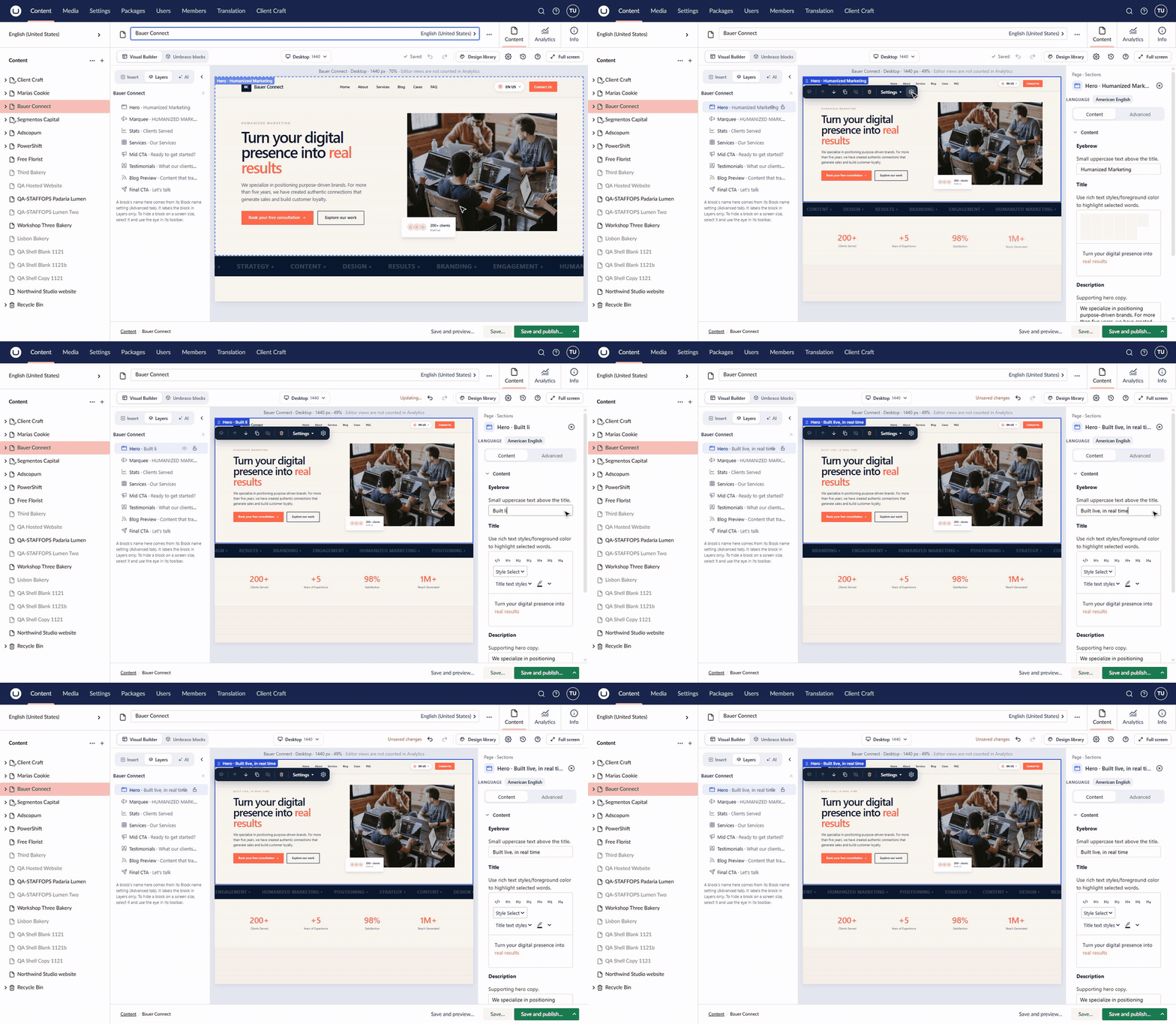
Select a block and open its properties in a drawer, organised by your own Umbraco tabs. Change text, rich text, images, links or toggles and watch the page update while you work. Fields the page doesn't show (a link URL, an alt text) are one click away in the block toolbar's Settings menu.
Every field mapped to its element, automatically
The Visual Builder reads your block data and matches each property to the element that shows it on the page, with no markup changes needed. Select a block and hover: each field is outlined with its name. Double-click one to type, or to jump straight to it in the drawer when it's rich text or media.
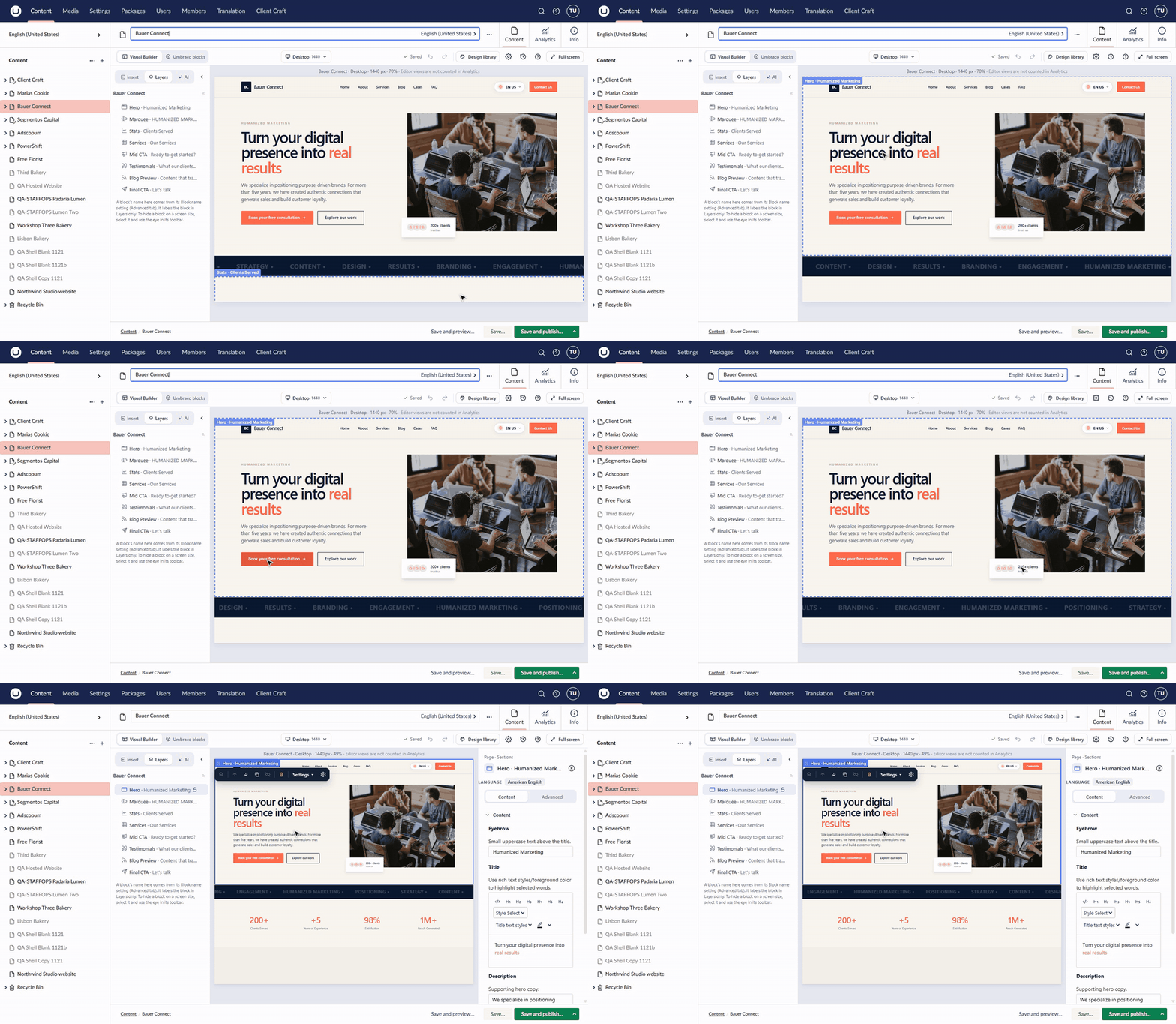
Move anything, easily
Grab a block by its handle and drag it where it belongs, across sections and grid areas. Or use the toolbar to move up, move down, duplicate, hide or delete. Every step can be undone.
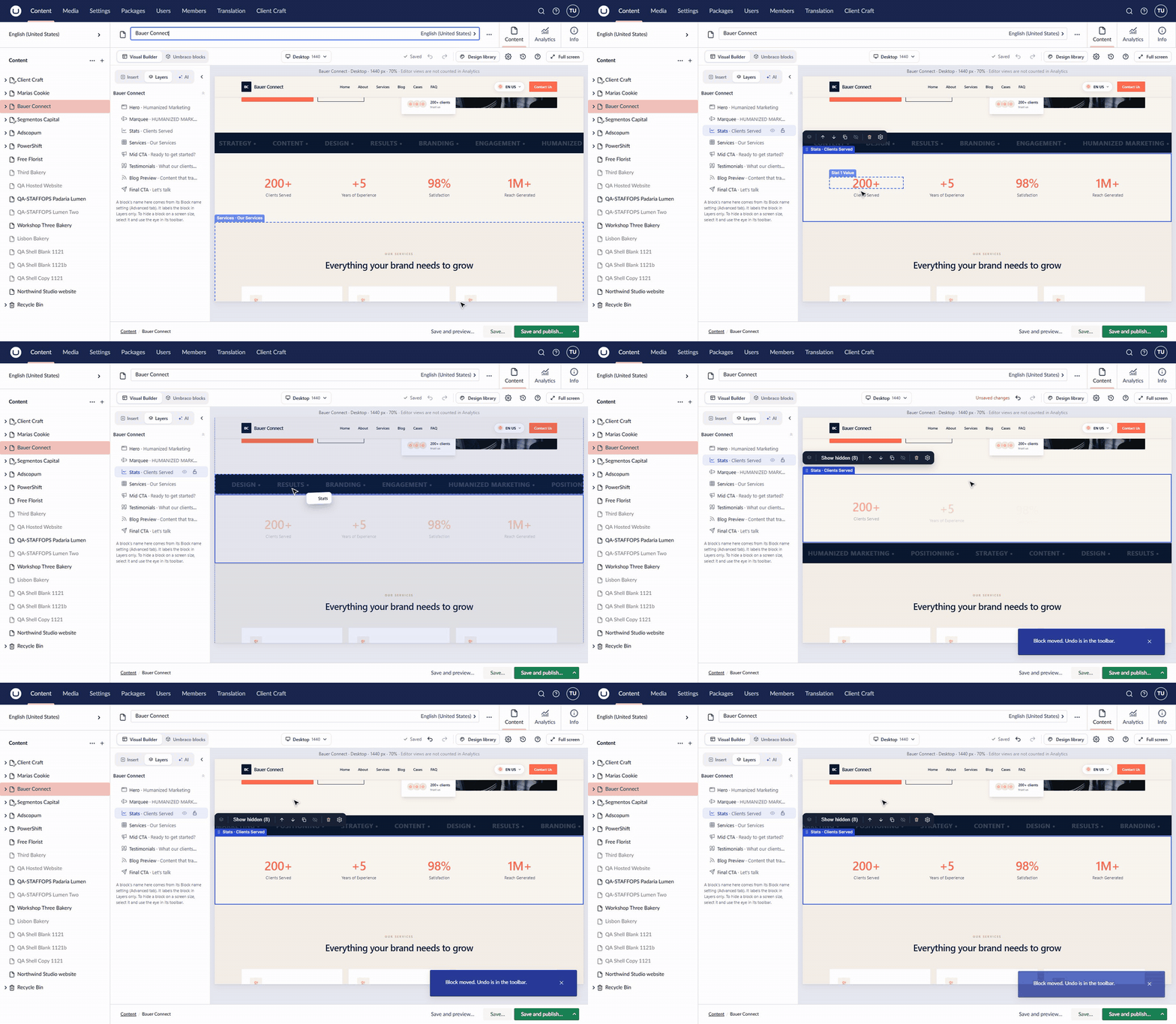
See where it lands
While you drag or insert, the page dims and a blue line shows exactly where the block will drop, labelled with what happens ("Move before Marquee", "Insert before Services"). Where your grid doesn't allow that block, the cue turns red and says "Not allowed here". No more guessing inside nested grids.
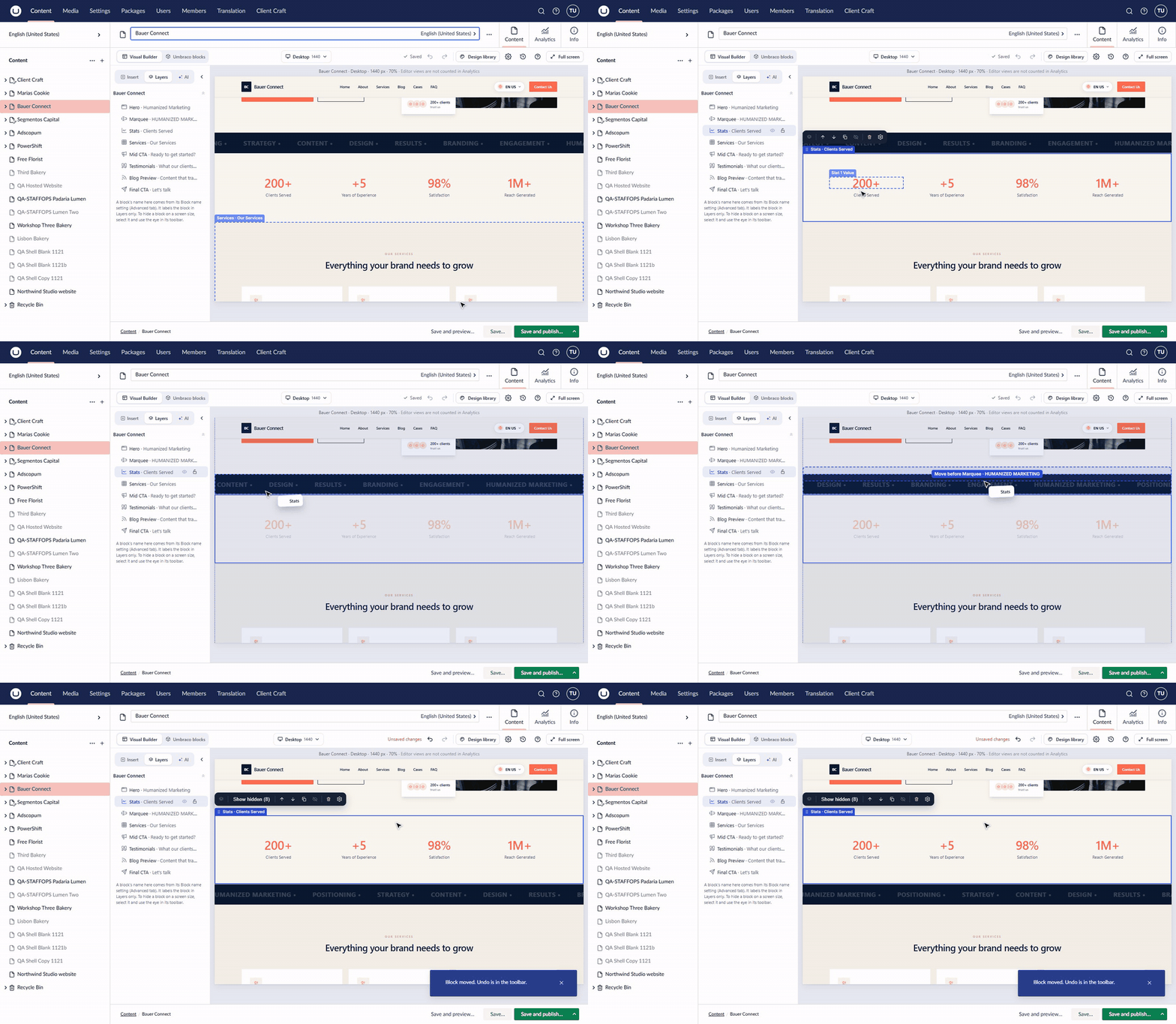
See every block in Layers
The Layers panel shows the whole page as a tree: sections, grid areas and the blocks inside them, named the way your editors name them. Click to select and scroll to it, drag to reorder, lock what shouldn't move, and hide a block on one screen size only.
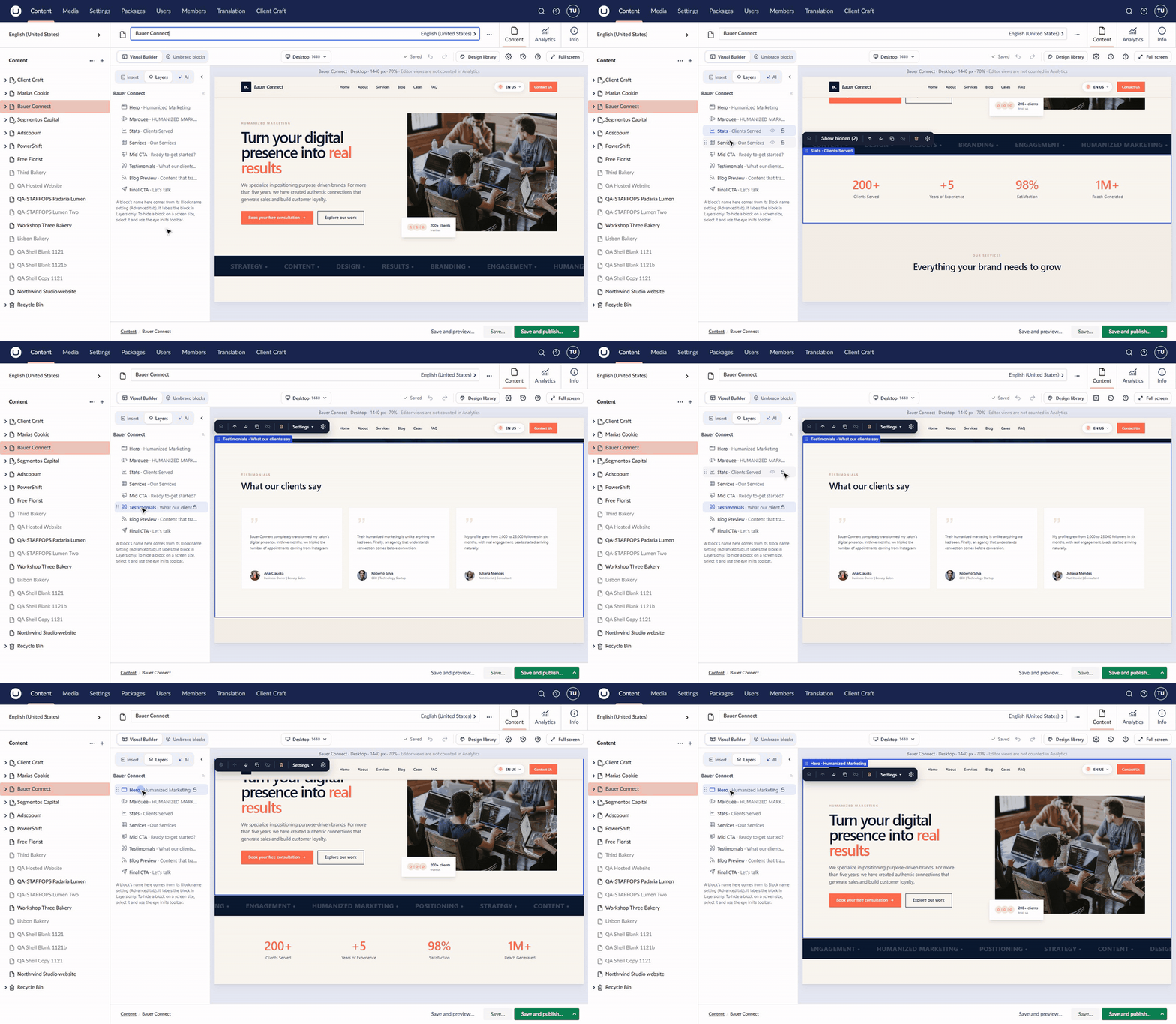
Every screen size
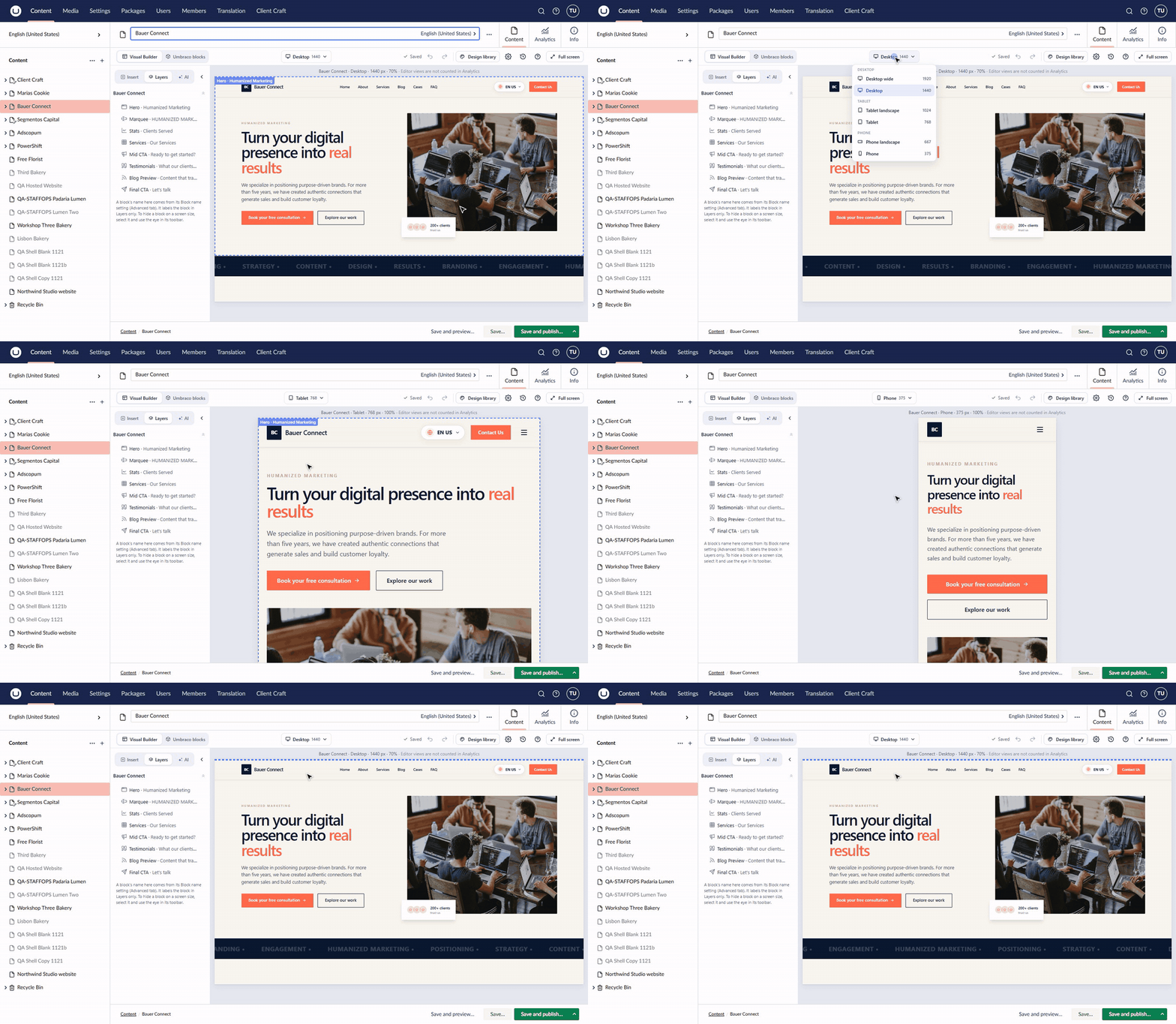
Switch between Desktop (1920 and 1440), Tablet and Phone, in portrait and landscape. Style each size separately: smaller sizes inherit from larger ones until you change them, and a blue dot shows what was set where.
One design library for the whole site
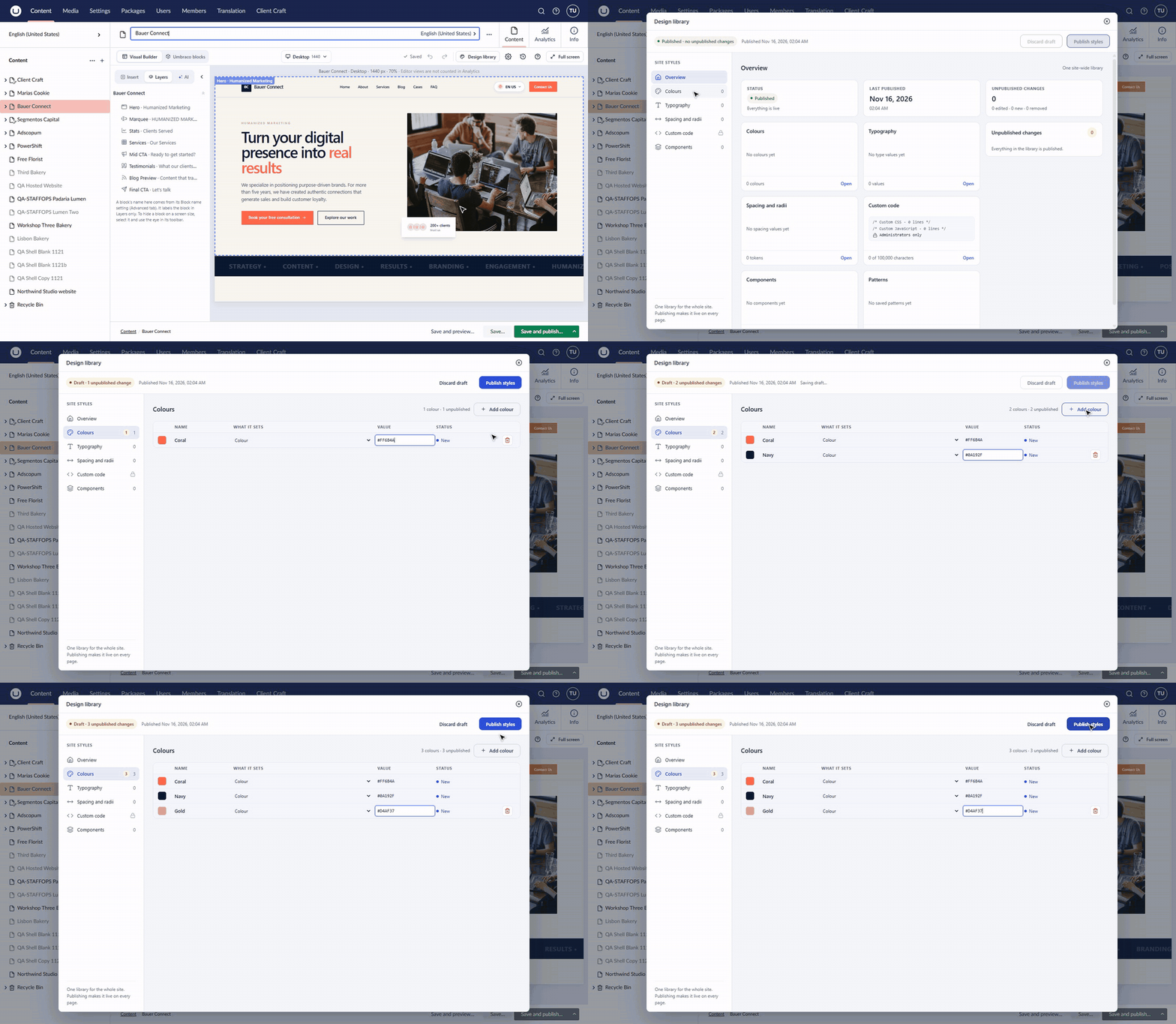
Colours, typography, spacing and radii live in one design library. Editors pick from it instead of typing hex codes, so a brand change is one edit, not a hundred. Draft changes preview in the editor and go live when you publish styles, and the library won't publish a deletion that pages still depend on.
- Components: turn a block into a reusable component; edit it once and every page that uses it updates.
- Patterns: save a group of blocks as a pattern and drop it into any page.
- Custom code: administrators can add site-wide CSS and JavaScript (JavaScript never runs inside the editor).
Still 100% Umbraco
- Umbraco's Save and publish. The Visual Builder lives inside the document workspace; the footer, permissions, workflow, scheduling and version history are Umbraco's own.
- Nothing happens behind your back. Changes stay on the canvas until you save, and reach visitors only when you publish. Version history asks before replacing unsaved edits.
- One click back. The Umbraco blocks switch opens Umbraco's own Content view at any time.
- Full screen when you want it. Hide the backoffice chrome and edit edge to edge, with Save and publish kept at hand.
Install
Requirements: .NET 10 and Umbraco 17.7.1 or later (below 18).
dotnet add package ClientCraft.VisualBuilder.Umbraco --prerelease
Switch it on in appsettings.json:
{
  "ClientCraft": {
    "VisualBuilder": { "ActiveByDefault": true }
  }
}
Add one line inside your layout's <head>:
@await Html.VisualBuilder().RenderAssets()
Run the site and open any page in the backoffice: the Visual Builder opens instead of the Content view. It works with the Block Grid and Block List blocks you already have.
Build with AI and live data (with Client Craft)
Install the ClientCraft package (which includes the Visual Builder) to connect the site to a Client Craft workspace:
- Build with AI: describe a change ("add a pricing section with three plans") and it appears on the canvas as an unsaved change you review, keep or undo. Nothing is saved or published until you say so. Uses your workspace's AI credits.
- Client Craft data sources: Collection blocks can list your plans, prices and products straight from Client Craft.
The Visual Builder works fully without Client Craft. These features are shown as locked until it is installed.
What it doesn't do
- It doesn't change your document types. Your schema stays yours, in Umbraco's own Settings.
- It doesn't save or publish on its own. Umbraco's Save and Publish are the only way changes leave the editor.
- It doesn't replace Umbraco. Every page can still be edited in Umbraco's own Content view.
Beta notes
- Running on real sites on Umbraco 17.7 and 17.8, including sites built by other agencies with their own blocks.
- The backoffice editor is built for desktop screens.
- On our list: a publish summary dialog, editing the shared header and footer on the canvas, and version history inside the design library.
Feedback, bugs and ideas: open an issue on GitHub.
License
MIT © Client Craft
| Product | Versions Compatible and additional computed target framework versions. |
|---|---|
| .NET | net10.0 is compatible. net10.0-android was computed. net10.0-browser was computed. net10.0-ios was computed. net10.0-maccatalyst was computed. net10.0-macos was computed. net10.0-tvos was computed. net10.0-windows was computed. |
-
net10.0
- MessagePack (>= 3.1.9)
- Microsoft.OpenApi (>= 2.9.0)
- System.Security.Cryptography.Pkcs (>= 10.0.13)
- Umbraco.Cms.Api.Management (>= 17.7.1 && < 18.0.0)
- Umbraco.Cms.Web.Common (>= 17.7.1 && < 18.0.0)
- Umbraco.Cms.Web.Website (>= 17.7.1 && < 18.0.0)
- Umbraco.Community.BlockPreview (>= 5.5.1 && < 6.0.0)
NuGet packages (1)
Showing the top 1 NuGet packages that depend on ClientCraft.VisualBuilder.Umbraco:
| Package | Downloads |
|---|---|
|
ClientCraft
Install ClientCraft Core and Visual Builder together from pinned NuGet packages, with the bridge that turns on the Core-powered Visual Builder features (Build with AI, Client Craft data sources). |
GitHub repositories
This package is not used by any popular GitHub repositories.
| Version | Downloads | Last Updated |
|---|---|---|
| 0.1.0-beta.2 | 43 | 11/24/2026 |
| 0.1.0-beta.1 | 72 | 11/23/2026 |
| 0.1.0-alpha.16 | 94 | 11/8/2026 |
| 0.1.0-alpha.15 | 506 | 10/28/2026 |
| 0.1.0-alpha.14 | 88 | 10/26/2026 |
| 0.1.0-alpha.12 | 104 | 10/25/2026 |
| 0.1.0-alpha.10 | 169 | 10/24/2026 |
| 0.1.0-alpha.7 | 96 | 10/18/2026 |
Generic Umbraco Block Grid composition, responsive visual styles, reusable components, navigation, collections, native links and media, and browser-native interactions. Schema upgrades are explicit; existing content is not converted automatically.