ProjectZ 2.8.2
dotnet add package ProjectZ --version 2.8.2
NuGet\Install-Package ProjectZ -Version 2.8.2
<PackageReference Include="ProjectZ" Version="2.8.2" />
<PackageVersion Include="ProjectZ" Version="2.8.2" />
<PackageReference Include="ProjectZ" />
paket add ProjectZ --version 2.8.2
#r "nuget: ProjectZ, 2.8.2"
#:package ProjectZ@2.8.2
#addin nuget:?package=ProjectZ&version=2.8.2
#tool nuget:?package=ProjectZ&version=2.8.2
⚡ Project Z 2.8.2
Familiar XAML. Native DirectX 12. Your UI, accelerated.
Build expressive desktop tools, creative applications, and game interfaces with a GPU-rendered scene system and a WPF-inspired programming model.



Showcase · Port your UI · Get started · Technical reference
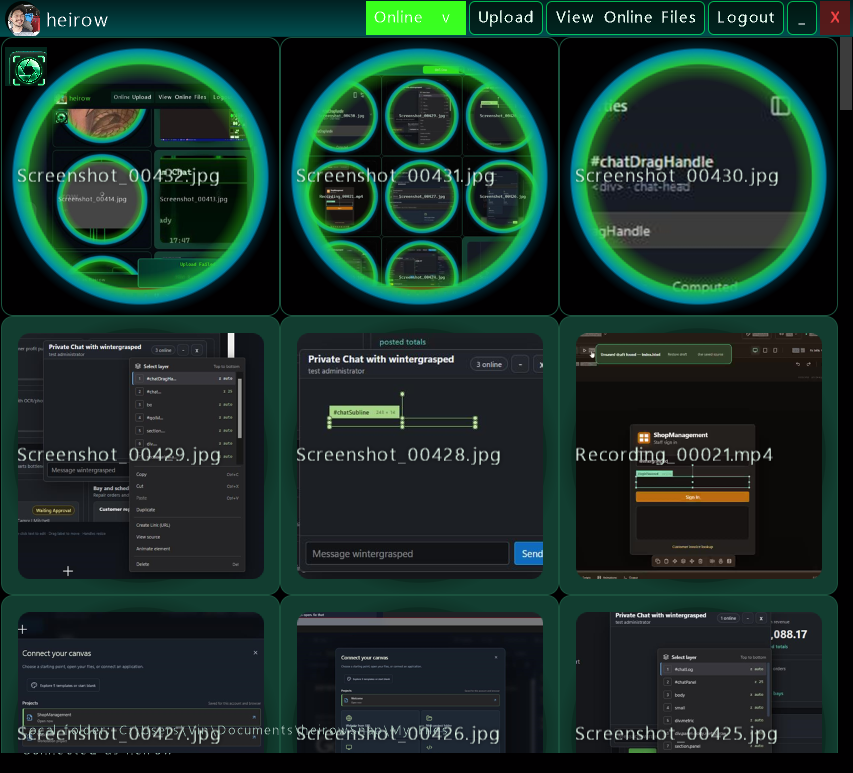
heirowSnap, ported to Project Z: original XAML styling brought into a native DX12 scene.
A new generation of Project Z
The renderer has moved from KNI to MonoGame 3.8.5.1's native DirectX 12 backend, retaining the familiar Microsoft.Xna.Framework drawing API. This update brings the pieces needed to move a real desktop UI: resources, styles, shaders, animation, scaled input, media, and native tool windows.
| New capability | What you can build with it |
|---|---|
| Vector text renderer | Smooth text drawn from font outlines, with selection and cursor placement that match the displayed letters. |
| Native DX12 renderer | Hardware-rendered scenes, reusable render targets, FXAA, synchronized viewport resizing, and a build-selectable DX11 fallback. |
| XAML UI porting | Convert supported XAML with its C# or VB code-behind and designer files, either on demand or automatically during builds. |
| XAML shader support | GPU blur, shadows, inversion, and chromatic effects on controls and subtrees, with animatable effect properties. |
| XAML animations | Storyboards, double/color keyframes, discrete corner-radius keyframes, easing, repeating tracks, and load/hover/click triggers. |
| Desktop input with scaling | Mouse buttons, drag, hover, wheel, keyboard and editable text, with native client-to-render coordinate mapping and transformed hit testing. |
| Richer layout and styling | Grid, Canvas, WrapPanel, DockPanel, UniformGrid, kinetic scrolling, independent rounded corners, gradients, masks, and resource-based styles. |
| Inline audio/video | Video frames rendered as scene textures, synchronized audio, play/pause/seek, looping, clipping, and bounded decode size. |
| 3D inside your UI | XYZW meshes, cameras, materials, OBJ/FBX models, textures, wireframe, and custom shaders through Surface3DElement. |
| Desktop integration | Borderless/resizable windows, DWM composition requests, shared-device tool windows, tray menus, hotkeys, notifications, and capture workflows in heirowSnap. |
| Creative tooling | Native DX12 VST3 editor with DX11 fallback, granular synthesis, MIDI, XAML design surface, and plugin deployment tooling. |
📦 Release 2.8.2: the framework package includes the DX12 scene library and internal model importer. The VST plugin, heirowSnap application, and sample projects are separate source projects.
📦 Install 2.8.2
dotnet add package ProjectZ --version 2.8.2


🔐 Dependency refresh: ProjectZ 2.8.2 references SocketJack 2026.15.0, which uses SSH.NET 2026.0.0. This replaces the vulnerable SSH.NET 2025.1.0 dependency resolved by the previous local package. Direct and transitive NuGet audit warnings block publication. SocketJack 2026.14 adds default authentication gates; networking applications should follow its migration guide.
⚙️ New in 2.8.2: choose what gets generated
The Project-Z settings page now offers Disabled, Designer only, or Designer + code-behind. Designer-only mode keeps your hand-adapted C#/VB code and generates the view fields, initialization and event wiring. Converting code-behind always includes a designer.
The Runtime example now stays open when launched from Visual Studio: click Run, and use F1/F2 to switch C#/VB views. Generated XAML is also copied correctly when Visual Studio builds referenced projects separately.
📋 Added in 2.8.1: select and copy display text
Users can now select text without turning it into an editable field. Enable IsTextSelectionEnabled on a Project-Z text block to allow dragging, Shift-selection, Ctrl+A, Ctrl+C, and right-click → Copy. Its menu offers Copy and Select all; it has no Cut or Paste commands.
For a text box that displays a value users must not change, set IsReadOnly="True". Selection and copying still work, while typing, deleting, cutting and pasting are blocked. Your application can still update the value from code.
This patch also fixes fresh Visual Studio configurations that showed a generated C# or VB view as the wrong window type: the source tooling now prepares the generated view types before the editor consumes them.
Read-only text examples and behavior
⚙️ New in 2.8: build your XAML directly
Keep your XAML and C# or VB code-behind together, then let a normal build prepare the supported views for Project-Z. After the one-time setup, there is no separate conversion command to run each time you edit a view.
| What's new | What it means for your project |
|---|---|
| ⚙️ Project-Z settings | Choose Project Properties → Project-Z → XAML conversion mode for each project that should use it. |
| 🔗 XAML + C# or VB | Matching code-behind and designer files are picked up together, including views linked from another folder. |
| 🛠️ Generated designers | Builds create .design.cs or .design.vb files containing the control fields, initialization and event connections. |
| 🛡️ Manual ports stay yours | Conversion is off by default. Leave it off for an existing port, or exclude individual views. Original source files are never overwritten. |
| 🪟 .NET 8 and .NET 10 | C# and VB Windows consumers have passed build and native runtime checks on both versions. |
Setup: this feature currently uses the tools in the source repository. External projects need the one-time import in the build-time setup guide. Installing the main ProjectZ NuGet package alone does not install the converter or add the settings page.
🛠️ What happens when I build?
Project-Z reads the selected XAML, converts copies of its supported code-behind, and generates the matching .design.cs or .design.vb files under obj. It then compiles those files and copies the view markup needed at runtime. Keep editing your original files; the generated files are temporary build output.
Unchanged builds reuse the output. Editing a view regenerates it, and Clean removes it so the next build starts fresh. Unsupported markup produces a build error explaining what needs attention. Application startup in App.xaml still uses the full project importer.
🛡️ Keep existing manual changes
For a hand-adapted application such as heirowSnap, set XAML conversion mode to Disabled. Its existing code continues to build normally.
To convert selected new views, enable the setting and use Excluded XAML files for views that should keep their current build behavior. Exclusions accept semicolon-separated paths or patterns, such as Views\Manual\**\*.xaml. Each project controls its own setting.
🪟 Try C# and VB in Visual Studio 2026
Open tests/WpfImport/BuildTime/ProjectZ.Xaml.BuildTests.sln in Visual Studio 2026 and set Runtime as the startup project. It exercises generated C# and VB views, including their original event handlers. The Off project demonstrates that a manual designer is preserved when conversion is disabled.
The samples default to .NET 8. To run the same views on .NET 10 from the repository root:
dotnet run --project tests/WpfImport/BuildTime/Runtime/Runtime.csproj -c Release -p:ProjectZTestTargetFramework=net10.0-windows7.0
The framework package targets .NET 8 for compatibility; .NET 10 Windows applications can consume it. The test suite also checks exclusions, rebuilds after XAML edits, unchanged builds, and diagnostics for unsupported features.
Full setup, settings and limitations
🔗 XAML + C#/VB code-behind → Project-Z
Bring the view and its behavior: convert supported XAML together with its C# or VB code-behind and designer partials. Project-Z generates the matching control fields and initialization code, connects events, and builds the converted project. You do not need to recreate the supported controls or rewrite their event handlers by hand.
For a single view, run this from the Project-Z repository:
dotnet run --project "Project Z XAML Codegen" -c Release -- import-view "C:\MyApp\View.xaml" --output "C:\Converted\View"
It finds View.xaml.cs or View.xaml.vb automatically, plus a matching View.Designer.cs/.vb or View.xaml.Designer.cs/.vb if present. For files with different names, pass --code-behind and --designer. Original files stay unchanged.
For an existing project, including files added with Add As Link, use import MyApp.csproj or import MyApp.vbproj instead. That route carries the project's namespaces, supporting source and references through the conversion. The single-view route creates a view library for an existing Project-Z scene; a complete project with App.xaml can become an executable.
Supported WPF features convert directly. Features outside the compatibility layer produce diagnostics instead of a misleading successful conversion. This is WPF/XAML conversion; WinForms designers and arbitrary third-party controls are not covered.
Single-view conversion, linked projects, and designer handling · Supported controls and limitations
✨ New in 2.7
Project-Z now gives you two more ways to build an interface: bring supported WPF projects into the native renderer, or show HTML5 content inside a Project-Z window. This release also improves text editing, control behavior and layout.
🌐 HTML5 inside your desktop app
Use the included JavaScript scene engine to build a browser-based interface with controls, input, layout and animation. Html5EngineHost displays it inside a native Project-Z window using WebView2. Local files are loaded directly, so you do not need to start a web server. The HTML5 page uses Canvas2D; native Project-Z scenes continue to use DirectX.
🧱 Bring an existing WPF project
The importer converts supported C# or VB projects, their XAML views and event connections into a separate Project-Z project. It leaves your original source alone and reports features it cannot convert. You can rerun the importer without silently overwriting your changes.
This is a starting point for supported applications, not a promise that every WPF application will work unchanged. The compatibility library covers a defined set of controls, bindings and events; unsupported features need adaptation.
Import instructions and supported features
✒️ Text, controls and networking updates
Text editing and selection use the same measurements as the text you see. Layout and control updates improve imported interfaces. SocketJack is updated to 2026.15.0: applications using MutableTcpServer must choose which protocols to enable before listening.
✒️ New in 2.6: vector text and precise editing
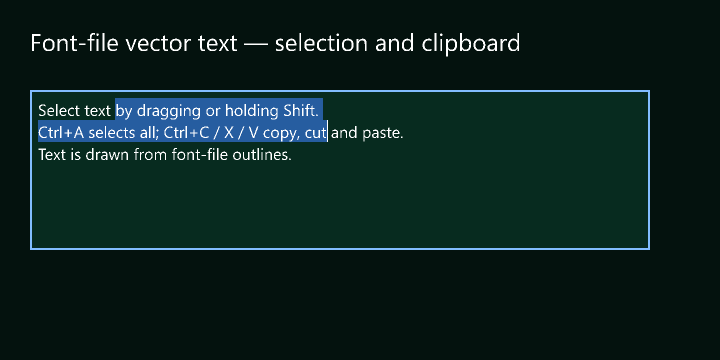
Windows text now uses font outlines drawn by the GPU. This keeps letters sharp when resized and helps the cursor, selection and mouse clicks line up with the text. Standard TTF and OTF font files work with both the DX12 renderer and the DX11 fallback. See the linked technical guide for how the outlines are converted into triangles.
Font outlines, editing and antialiasing
- Outline rendering: the default Segoe UI font is loaded from Windows and drawn as shapes rather than a sheet of letter images.
- Custom fonts: register a TTF or OTF with
LoadVectorFont, then assign its key to a text control. Point sizes use 96/72 logical pixels per point. - Consistent editing: drag and keyboard selection, multiline highlights, clipboard shortcuts, word navigation and replacement use the rendered font metrics.
- Quality controls: antialiasing smooths the edges of letters and shapes. DX12 and DX11 use different methods; texture filtering affects images separately.
- Compatibility: existing SpriteFont assets remain the fallback when no matching vector font is loaded or the default font file is absent. Vector shaping currently targets Windows.
content.LoadVectorFont("EditorFont", "C:\Fonts\MyFont.ttf", 12)
textbox.Font = "EditorFont"
Text rendering and selection · Graphics quality and backend behavior
🧭 Feature guide
⚡ Native DirectX 12 · scenes and rendering
MonoGame 3.8.5.1 supplies the native DX12 backend while preserving the familiar Microsoft.Xna.Framework drawing API. Render targets, FXAA, viewport resizing, and shared-device tool windows support desktop applications and interactive scenes. Select ProjectZGraphicsBackend=DirectX11 when testing the WindowsDX fallback; the distributed package uses DX12.
🧱 XAML · resources, layout and controls
Import supported windows, named controls, resource dictionaries, and item templates into the scene graph. Grid, Canvas, WrapPanel, DockPanel, UniformGrid, scrolling, gradients, masks, and independent corner radii provide layout and styling. The separate XAML code generator produces VB named-control and event scaffolding. This is a supported XAML subset, not complete WPF compatibility.
✨ GPU effects · blur, shadow and color
Effects can apply to individual controls or subtrees. Blur, shadows, inversion, and chromatic effects integrate with XAML and animatable properties. Build tooling compiles Resources/XamlEffects.fx for the selected graphics backend. Existing WPF shader binaries are not automatically converted; consult the third-party notices for adapter licensing.
🎞️ Animation · storyboards and input triggers
Use double/color keyframes, discrete corner-radius changes, easing, repeating tracks, and load/hover/click triggers. Start a named storyboard after attaching the imported tree. Animation targets include scale, translation, and effect properties.
🖱️ Input · scaling, transformed hit testing and editing
Mouse coordinates map from native client space into render space during resizing and display scaling. Hit testing respects transforms, visibility, and clipping. Controls support mouse buttons, hover, drag, wheel routing, keyboard repeat, editable text, selection, clipboard shortcuts, and password fields. Kinetic scrolling uses bounded impulses and time-based deceleration. Touch, pen, IME, and accessibility-provider parity are not implied.
🎬 Media · inline audio and video
Video frames become scene textures with synchronized audio, play/pause/seek, looping, clipping, and bounded decode sizes. Media and capture applications may require FFmpeg and additional application configuration.
🧊 3D surfaces · meshes, cameras and models
Surface3DElement brings XYZW meshes, cameras, materials, OBJ/FBX import, textures, wireframe, and custom shaders into the UI. The NuGet package includes the internal model-import assembly and declares its public dependencies.
🪟 Desktop composition · windows and native integration
Borderless/resizable hosts and shared-device tool windows connect the scene system to desktop workflows. DWM composition requests depend on the host window and OS configuration; they do not guarantee transparent blur in every application. The heirowSnap source example demonstrates tray menus, shortcuts, notifications, and capture controls.
🎹 Creative projects · VST3, MIDI and design tools
The separate VST3 project combines granular synthesis, MIDI, a native editor, and deployment tooling. The XAML design surface and sample applications demonstrate creative workflows. Installing the framework NuGet package does not install a plugin; plugin deployment is explicit.
📸 heirowSnap showcase · an application built on Project Z
The source port demonstrates galleries, account/file/chat flows, clipboard history, capture controls, notifications, and imported theme resources. The images below show local rendering and UI; remote calling and streaming still require independent two-client validation. These application features are not bundled as a ready-to-run app in the framework package.
heirowSnap built with Project Z
The port brings an existing WPF application's linked XAML and theme resources into Project Z scenes, while native code connects account, file, chat, clipboard, and capture workflows.
Your theme, carried across
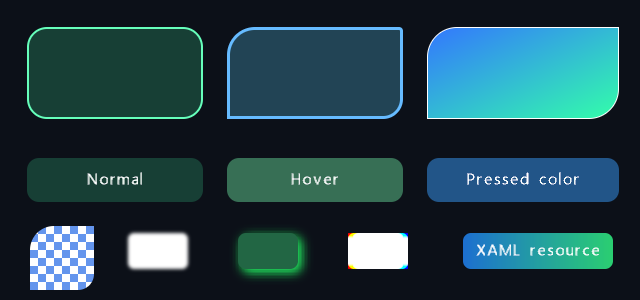
Native surfaces, gradient brushes, state styling, and GPU effects.
A complete desktop settings surface
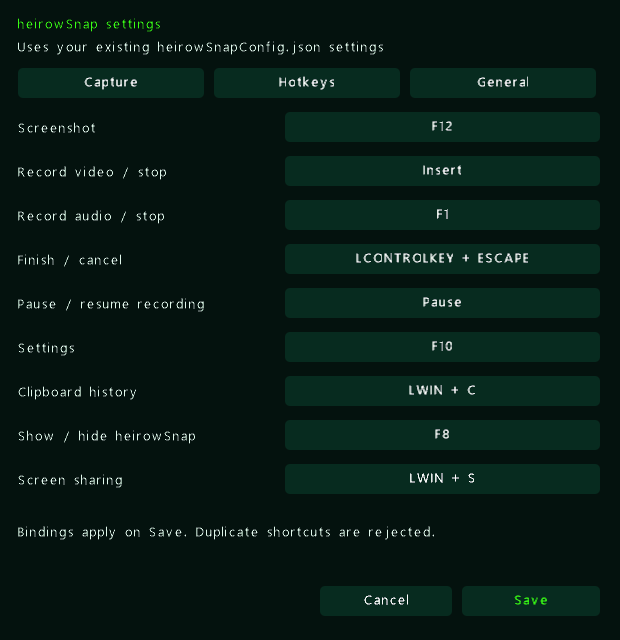
Project Z controls, tabs, shortcuts, and the existing settings model.
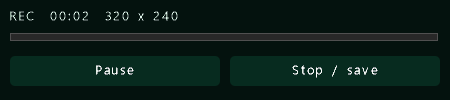
Small windows share the same visual language: recording controls, notifications, settings, and tray surfaces.
- Files and media: local/online galleries, streaming uploads, drag-and-drop, asynchronous video thumbnails, inline playback, and Recycle Bin-confirmed deletion.
- People and conversations: presence, contact menus, chat windows, and wire-compatible SocketJack protocol models.
- Clipboard: persistent history, search, filtering, sorting, and a configurable global shortcut.
- Capture: screenshots, video/audio recording, pause/resume, region indicators, audio levels, and native recording controls.
- Desktop polish: same-process settings, custom tray menus, animated notifications, and preservation of existing configuration fields.
These are real development captures of the port and its DX12 graphics probe. They illustrate rendering and local UI; remote calling and streaming require separate two-client validation. Capture provenance.
Bring your XAML
1. Keep your markup and theme
Link existing .xaml files and resource dictionaries into your app's output. heirowSnap links them directly from its original source tree, keeping the original UI files available to both applications.
2. Import the window into a scene
Inside an initialized Project Z scene:
Imports ProjectZ.Shared.Drawing.Designer
Imports ProjectZ.Shared.Drawing.UI.Input

SceneXamlParser.RegisterApplicationResources("UI\Theme.xaml")

Dim importer As New SceneXamlParser(Me)
Dim root = importer.ParseLegacyWindow("UI\MainWindow.xaml")
AddElement(root)

Dim save = importer.FindName(Of Button)("SaveButton")
If save IsNot Nothing Then
    AddHandler save.MouseLeftClick, Sub(point) SaveSettings()
End If

For Each feature In importer.UnsupportedFeatures
    System.Diagnostics.Debug.WriteLine(feature)
Next
SaveSettings() is your application handler; paths are relative to the working directory. Use ParseFile for scene markup, ParseNamedElement for a single control, or ParseItemTemplate for repeated items. RegisterFactory maps custom controls to native implementations.
3. Connect the behavior
The code generator creates named-element fields and event scaffolding for documents with x:Class, preserving code inside its designated custom-code region:
dotnet run --project "Project Z XAML Codegen" -- "MyApp\UI" "MyApp\Generated"
Keep the UI; adapt the application logic. Supported controls and styles import directly. WPF code-behind, arbitrary bindings, complex templates, and custom controls may need adapters. Review UnsupportedFeatures and generated compatibility notes. This is a supported XAML subset, not a full WPF runtime.
Style it. Shade it. Animate it.
Familiar XAML, native effects
<Border xmlns="http://schemas.microsoft.com/winfx/2006/xaml/presentation"
        Width="320" Height="100" CornerRadius="18"
        Background="#103D30" BorderBrush="#35E7C4" BorderThickness="1">
    <Border.Effect>
        <DropShadowEffect Color="#35E7C4" BlurRadius="16"
                          ShadowDepth="3" Opacity="0.65" />
    </Border.Effect>
    <TextBlock Text="Hello, native DX12" Foreground="White" />
</Border>
Application and merged dictionaries, local overrides, BasedOn styles, solid brushes, and linear/radial gradients carry your visual language across controls. Rounded surfaces support independent corner radii and antialiased edges; buttons retain normal, hover, and pressed brushes.
Effects capture subtrees into reusable GPU render targets and respect ancestor scroll clipping. Storyboards can animate blur radius, shadow depth, opacity, color, and chromatic amount. RegisterEffectAdapter extends the mappings.
The supported WPFPixelShaderLibrary inversion and linear/spastic chromatic adapters use the original shader calculations. Generic chromatic effects and WPF box blur use approximations. Arbitrary compiled WPF .ps files are not automatically converted. Shader details and licensing.
Motion stays in the markup
<Grid xmlns="http://schemas.microsoft.com/winfx/2006/xaml/presentation"
      xmlns:x="http://schemas.microsoft.com/winfx/2006/xaml">
    <Grid.Resources>
        <Storyboard x:Key="Reveal">
            <DoubleAnimation Storyboard.TargetName="Card"
                             Storyboard.TargetProperty="Opacity"
                             From="0" To="1" Duration="0:0:0.35" />
        </Storyboard>
    </Grid.Resources>
    <Border x:Name="Card" Width="320" Height="100"
            Background="#103D30" CornerRadius="18" />
</Grid>
After parsing and attaching the tree, call importer.BeginStoryboard("Reveal") from the scene's event/update path. Imported Loaded, MouseEnter, MouseLeave, and click triggers can also start storyboards. Keyframes, spline/easing interpolation, repeating tracks, scale/translation targets, and effect properties support richer transitions. heirowSnap notifications use imported load, hover, and click animations.
Input that follows the UI
Native mouse coordinates map into render coordinates during resizing and across monitor scale changes. Parent transforms, visibility, and clipping participate in hit testing, keeping interaction aligned with the rendered control.
- Left/right clicks, movement, hover, dragging, and wheel routing through nested controls.
- Keyboard press/release and repeat, editable text, selection, clipboard shortcuts, and password input.
- Kinetic scrolling with bounded impulses, time-based deceleration, and edge stopping.
- Native tool-window input forwarded into the shared scene renderer.
This covers desktop mouse/keyboard input; touch, pen, IME, and accessibility-provider parity are not implied.
Run it from source
Use Windows, the .NET 8 SDK, and a DX12-capable GPU/driver. Windows apps target x64 by default. Visual Studio 2022 can open Project Z.sln.
# Build the framework. Native DX12 is the default.
dotnet build "Project Z Windows.vbproj" -c Release

# Run the application demo.
dotnet run --project "Project Z Application\Project Z Application (Windows).vbproj" -c Release

# Select the DX11 migration fallback.
dotnet build "Project Z Windows.vbproj" -c Release -p:ProjectZGraphicsBackend=DirectX11
The build restores the pinned MGFXC tool and compiles XAML shaders for the selected backend. Edit Resources/XamlEffects.fx; generated binaries belong under obj.
The framework Release build also creates bin/Release/ProjectZ.2.8.2.nupkg.
The project and assembly version is 2.8.2.0; NuGet normalizes the package version
to 2.8.2. The package includes the internal model-import DLL and restores its
public dependencies, including SocketJack, from NuGet. Local SocketJack source
development is opt-in with -p:UseLocalSocketJack=true; leave this off when
building a package for distribution.
Solution builds do not install the VST plugin. To explicitly build and deploy it,
use dotnet build "Project Z VST/Project Z VST.csproj" -c Release -p:DeployVst3OnBuild=true.
For heirowSnap, provide the original wShare checkout. WShareRoot defaults to %USERPROFILE%\source\repos\wShare; legacy settings also references InputHelper.dll in the adjacent AI.NET output. See the project file for the expected path.
dotnet build "heirowSnap Project Z\heirowSnap Project Z.vbproj" -c Release -p:WShareRoot="C:\src\wShare"
dotnet run --project "heirowSnap Project Z\heirowSnap Project Z.vbproj" -c Release --no-build
Network workflows need a configured service/account; recording and thumbnail workflows need FFmpeg. For the published package separately: dotnet add package ProjectZ.
Explore the solution
| Project / area | Purpose |
|---|---|
Project Z Windows.vbproj |
Scene graph, controls, layout, input, animations, XAML, and rendering. |
heirowSnap Project Z |
Desktop port and practical integration example. |
heirowSnap Protocol / heirowSnap Legacy Settings |
Network models and linked settings implementation. |
Project Z XAML Codegen |
XAML-to-VB named-control and event scaffolding. |
Project Z Model Import |
Assimp-backed model import for 3D surfaces. |
Project Z VST / Project Z VST SmokeHost |
Granular synthesizer, native editor, and embedded-host checks. |
Project Z Application |
UI demo and playable Tetris. |
Project Z Audio / Project Z Video FX |
Audio analysis and reactive visuals. |
Project Z Tower Defense |
Networked game and WPF-hosted designer. |
ProjectTemplate |
Application starting point. |
Go deeper
- Backends, composition, inline video, and 3D
- Rounded corners, XAML resources, and effects
- Desktop integration and focused smoke checks
- VST3 editor and deployment
- Third-party notices
Contributions and reproducible issues are welcome. For rendering problems, include the backend, GPU/driver, display scaling, and a small XAML example.
Project Z · Declarative UI with a native GPU canvas.
Built with MonoGame, .NET, SocketJack, and the libraries in third-party notices. Imported WPFPixelShaderLibrary adapters include GPL-3.0 material; review the notices and bundled license before redistribution.
| Product | Versions Compatible and additional computed target framework versions. |
|---|---|
| .NET | net8.0-windows7.0 is compatible. net9.0-windows was computed. net10.0-windows was computed. |
-
net8.0-windows7.0
- LibTessDotNet (>= 1.1.15)
- Microsoft.Web.WebView2 (>= 1.0.4258.31)
- MonoGame.Framework.Native (>= 3.8.5.1)
- MonoGame.Runtime.Windows.DX12 (>= 3.8.5.1)
- Silk.NET.Assimp (>= 2.23.0)
- SocketJack (>= 2026.15.0)
NuGet packages
This package is not used by any NuGet packages.
GitHub repositories
This package is not used by any popular GitHub repositories.
| Version | Downloads | Last Updated |
|---|---|---|
| 2.8.2 | 0 | 10/3/2026 |
| 2.8.1 | 0 | 10/3/2026 |
| 2.8.0 | 33 | 10/3/2026 |
| 2.7.1 | 39 | 10/3/2026 |
| 2.7.0 | 33 | 10/3/2026 |
| 2.6.1 | 56 | 10/1/2026 |
| 2.6.0 | 56 | 10/1/2026 |
| 2.5.1 | 58 | 9/30/2026 |
| 2.5.0 | 58 | 9/30/2026 |
| 2.0.1 | 168 | 2/25/2026 |
| 1.0.6 | 2,245 | 7/2/2014 |
| 1.0.2 | 1,840 | 6/12/2014 |
| 1.0.1 | 1,872 | 6/12/2014 |
| 1.0.0 | 1,579 | 6/12/2014 |
2.8.2 adds Disabled, Designer only, and Designer + code-behind modes; preserves manual source in designer-only builds; fixes generated XAML copying in Visual Studio; and keeps the Runtime example open for interactive testing.