ImApp 2.0.0

dotnet add package ImApp --version 2.0.0
                    
NuGet\Install-Package ImApp -Version 2.0.0
                    
This command is intended to be used within the Package Manager Console in Visual Studio, as it uses the NuGet module's version of Install-Package.
<PackageReference Include="ImApp" Version="2.0.0" />
                    
For projects that support PackageReference, copy this XML node into the project file to reference the package.
<PackageVersion Include="ImApp" Version="2.0.0" />
                    
Directory.Packages.props
<PackageReference Include="ImApp" />
                    
Project file
For projects that support Central Package Management (CPM), copy this XML node into the solution Directory.Packages.props file to version the package.
paket add ImApp --version 2.0.0
                    
#r "nuget: ImApp, 2.0.0"
                    
#r directive can be used in F# Interactive and Polyglot Notebooks. Copy this into the interactive tool or source code of the script to reference the package.
#:package ImApp@2.0.0
                    
#:package directive can be used in C# file-based apps starting in .NET 10 preview 4. Copy this into a .cs file before any lines of code to reference the package.
#addin nuget:?package=ImApp&version=2.0.0
                    
Install as a Cake Addin
#tool nuget:?package=ImApp&version=2.0.0
                    
Install as a Cake Tool

ImApp

ImApp is a lightweight C# application framework for building native desktop applications with Dear ImGui, GLFW, and OpenGL.

It provides a small application and window layer around the underlying platform and rendering backends, allowing you to focus on building your UI directly with Dear ImGui.

Status: Early development

Features

  • Native desktop windows through GLFW
  • Dear ImGui integration
  • OpenGL rendering
  • Configurable window options
  • Configurable target FPS
  • Borderless windows
  • Resizable windows
  • Maximized windows
  • Transparent windows
  • Topmost windows
  • Mouse passthrough
  • Keyboard navigation
  • Gamepad navigation
  • Dear ImGui docking support
  • Optional full-window ImGui host
  • Embedded Noto Sans font
  • .NET 10

Requirements

  • .NET 10 SDK/runtime
  • OpenGL 3.2+
  • GLFW-compatible desktop environment

Installation

Install ImApp from NuGet:

dotnet add package ImApp

Or add it manually to your .csproj:

<ItemGroup>
    <PackageReference Include="ImApp" Version="0.2.0" />
</ItemGroup>

Quick Start

Create a basic ImApp application:

using Hexa.NET.ImGui;
using ImApp;

using var app = new App(new WindowOptions
{
    Title = "My ImApp",
    Width = 1000,
    Height = 700
});

app.Run(() =>
{
    ImGui.Begin("Hello");

    ImGui.Text("Hello from ImApp!");

    if (ImGui.Button("Click me"))
    {
        Console.WriteLine("Clicked!");
    }

    ImGui.End();
});

The App class handles:

  1. GLFW initialization
  2. OpenGL context creation
  3. Dear ImGui context creation
  4. Dear ImGui GLFW backend initialization
  5. Dear ImGui OpenGL backend initialization
  6. Input and event processing
  7. Frame rendering
  8. Buffer swapping
  9. Resource cleanup

Window Options

WindowOptions controls how the GLFW window is created.

var options = new WindowOptions
{
    Title = "My Application",
    Width = 1000,
    Height = 700,

    Decorated = true,
    Resizable = true,
    Transparent = false,
    Topmost = false,

    Maximized = false,
    Visible = true,
    Focused = true,

    AutoIconify = true,
    FocusOnShow = true,
    MousePassthrough = false,

    DockingEnabled = false,
    HostWindow = true,

    TargetFps = 100,
    FontSize = 17
};

Window Properties

Property Description Default
Title Initial window title "ImApp Window"
Width Initial window width 800
Height Initial window height 600
Decorated Enables native window decorations true
Resizable Allows the window to be resized true
Transparent Enables a transparent framebuffer false
Topmost Requests the window to stay above normal windows false
Maximized Starts the window maximized false
Visible Makes the window initially visible true
Focused Requests initial keyboard focus true
AutoIconify Iconifies fullscreen windows when focus is lost true
FocusOnShow Focuses the window when shown true
MousePassthrough Allows mouse input to pass through the window false
DockingEnabled Enables Dear ImGui docking false
HostWindow Creates a full-window ImGui host window true
TargetFps Target rendering rate; 0 disables the limiter 100
FontSize Embedded font size 17

Host Window

By default, ImApp creates an ImGui window that fills the application's main viewport and executes the application UI inside it.

using var app = new App(new WindowOptions
{
    HostWindow = true
});

app.Run(() =>
{
    ImGui.Text("Hello from the host window!");
});

Internally, the host window uses the application's main viewport:

Main Viewport
┌──────────────────────────────────────┐
│                                      │
│            Host Window               │
│                                      │
│        Application UI                │
│                                      │
└──────────────────────────────────────┘

The host window is created without decorations and without a visible border.

This is useful when the application wants ImApp to provide the root ImGui container while the application controls the UI inside it.

Disable Host Window

Set:

HostWindow = false

Then ImApp directly executes your callback without creating the additional host window.

using var app = new App(new WindowOptions
{
    HostWindow = false
});

app.Run(() =>
{
    ImGui.ShowDemoWindow();
});

Frame Rate

ImApp includes a simple frame-rate limiter.

using var app = new App(new WindowOptions
{
    TargetFps = 144
});

For example:

TargetFps = 60

targets approximately:

16.67 ms/frame

While:

TargetFps = 144

targets approximately:

6.94 ms/frame

Set TargetFps to 0 to disable frame-rate limiting:

TargetFps = 0;

The limiter uses a high-resolution Stopwatch and sleeps while waiting for the next frame.


Transparent Windows

Enable a transparent framebuffer:

using var app = new App(new WindowOptions
{
    Title = "Transparent Window",
    Width = 800,
    Height = 600,

    Transparent = true,
    Decorated = false
});

ImApp clears the framebuffer using transparent alpha:

Gl.ClearColor(0, 0, 0, 0);

This allows the desktop compositor to display the area behind the window.

Transparent window behavior depends on the operating system, window system, compositor, graphics driver, and GLFW platform backend.


Borderless Windows

Disable native decorations:

using var app = new App(new WindowOptions
{
    Title = "Borderless Window",
    Width = 1000,
    Height = 600,

    Decorated = false
});

This is useful for applications that implement their own window decorations.


Topmost Windows

Set Topmost to true:

using var app = new App(new WindowOptions
{
    Title = "Overlay",
    Width = 500,
    Height = 300,

    Topmost = true,
    Decorated = false
});

This requests that the window manager keep the window above normal windows.


Mouse Passthrough

For overlays that should not receive mouse input:

using var app = new App(new WindowOptions
{
    Title = "Overlay",

    Transparent = true,
    Decorated = false,
    MousePassthrough = true
});

This configures the GLFW window so mouse input can pass through it to applications underneath.


Docking

Dear ImGui docking can be enabled with:

using var app = new App(new WindowOptions
{
    Title = "Docking Application",
    Width = 1200,
    Height = 800,

    DockingEnabled = true
});

You can then use Dear ImGui docking functionality normally.

app.Run(() =>
{
    ImGui.ShowDemoWindow();
});

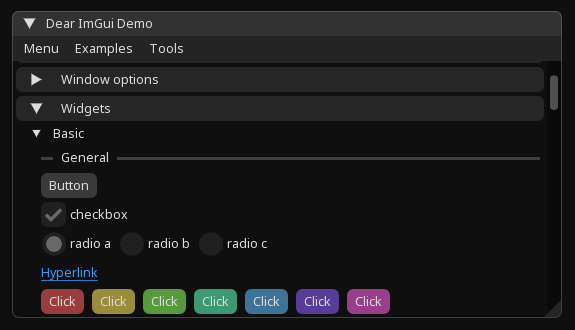
The Dear ImGui demo window provides examples of available UI and docking functionality.


Building UI

ImApp does not introduce another widget system.

Instead, it exposes the Dear ImGui API directly.

app.Run(() =>
{
    ImGui.Begin("Settings");

    ImGui.Text("Application Settings");

    bool enabled = true;

    ImGui.Checkbox(
        "Enabled",
        ref enabled
    );

    float value = 0.5f;

    ImGui.SliderFloat(
        "Value",
        ref value,
        0.0f,
        1.0f
    );

    if (ImGui.Button("Apply"))
    {
        Console.WriteLine("Applied");
    }

    ImGui.End();
});

This keeps ImApp small while giving applications direct access to Dear ImGui.


Font

ImApp embeds Noto Sans Regular and loads it during application initialization.

The default font size is:

FontSize = 17;

It can be changed through WindowOptions:

using var app = new App(new WindowOptions
{
    FontSize = 18
});

The loaded font is also available through:

app.Font

Application Loop

The application lifecycle is approximately:

App
 │
 ├── Initialize GLFW
 │
 ├── Configure GLFW window
 │
 ├── Create OpenGL window
 │
 ├── Create ImGui context
 │
 ├── Configure ImGui
 │
 ├── Initialize GLFW backend
 │
 ├── Initialize OpenGL backend
 │
 ├── Load embedded font
 │
 ├── Configure ImGui style
 │
 └── Run
      │
      ├── Limit frame rate
      │
      ├── Poll events
      │
      ├── Handle minimized window
      │
      ├── Clear framebuffer
      │
      ├── Start ImGui frame
      │
      ├── Create optional host window
      │
      ├── Execute application UI
      │
      ├── Render ImGui
      │
      └── Swap buffers

The application provides its UI through:

app.Run(() =>
{
    // Application UI
});

The callback is executed once per rendered frame.


Complete Example

using Hexa.NET.ImGui;
using ImApp;

using var app = new App(new WindowOptions
{
    Title = "ImApp Example",

    Width = 900,
    Height = 600,

    Decorated = true,
    Resizable = true,

    DockingEnabled = true,
    HostWindow = true,

    TargetFps = 144,
    FontSize = 17
});

bool enabled = true;
float value = 0.5f;

app.Run(() =>
{
    ImGui.Begin("Application");

    ImGui.Text("Welcome to ImApp!");
    ImGui.Separator();

    ImGui.Checkbox(
        "Enabled",
        ref enabled
    );

    ImGui.SliderFloat(
        "Value",
        ref value,
        0.0f,
        1.0f
    );

    if (ImGui.Button("Apply"))
    {
        Console.WriteLine("Applied");
    }

    ImGui.End();
});

Dependencies

ImApp is built on top of:

  • Dear ImGui
  • Hexa.NET.ImGui
  • Hexa.NET.GLFW
  • Hexa.NET.OpenGL
  • Hexa.NET.ImGui.Backends.GLFW
  • Hexa.NET.ImGui.Backends.OpenGL3
  • HexaGen.Runtime
  • .NET 10

ImApp provides the application, window, rendering, timing, and lifecycle layer while Dear ImGui remains the primary UI API.


Project Structure

A typical ImApp application can be very small:

MyApplication/
├── MyApplication.csproj
└── Program.cs

Example Program.cs:

using Hexa.NET.ImGui;
using ImApp;

using var app = new App();

app.Run(() =>
{
    ImGui.ShowDemoWindow();
});

Building from Source

Clone the repository:

git clone https://github.com/yourname/ImApp.git
cd ImApp

Build:

dotnet build

Build in Release mode:

dotnet build -c Release

Creating the NuGet Package

Create the package with:

dotnet pack -c Release

The generated package will be placed in:

bin/Release/

For version 0.2.0, the package will be:

ImApp.0.2.0.nupkg

You can inspect the package locally with:

dotnet nuget locals all --clear

and install the generated package from a local package source.


Roadmap

  • GLFW application initialization
  • OpenGL rendering
  • Dear ImGui integration
  • Configurable window options
  • Transparent windows
  • Borderless windows
  • Resizable windows
  • Maximized windows
  • Topmost windows
  • Mouse passthrough
  • Docking
  • Target FPS
  • Embedded font
  • Host window
  • Runtime window management
  • Application events
  • Input abstraction
  • Custom window decorations
  • Improved platform support
  • Better lifecycle and error handling
  • Multi-viewport support

License

ImApp is licensed under the MIT License.

See LICENSE for details.

Product Compatible and additional computed target framework versions.
.NET net10.0 is compatible.  net10.0-android was computed.  net10.0-browser was computed.  net10.0-ios was computed.  net10.0-maccatalyst was computed.  net10.0-macos was computed.  net10.0-tvos was computed.  net10.0-windows was computed. 
Compatible target framework(s)
Included target framework(s) (in package)
Learn more about Target Frameworks and .NET Standard.

NuGet packages

This package is not used by any NuGet packages.

GitHub repositories

This package is not used by any popular GitHub repositories.

Version Downloads Last Updated
2.0.0 45 10/1/2026
1.0.1 52 10/1/2026 1.0.1 is deprecated because it is no longer maintained.
1.0.0 112 9/18/2026 1.0.0 is deprecated because it is no longer maintained and has critical bugs.